04 Sep 2026
How to Login to Canva Without a Phone Number: Easy Ways to Try
How to Login to Canva Without a Phone Number
Trying to access Canva but don't want to provide your personal phone number? You're not alone.
Many users prefer to keep their primary number private, especially when an online service asks for an SMS verification code during sign-in or account setup. Others may not have reliable mobile service, may be traveling, or simply want to separate personal communications from account verification.
The good news is that a phone number is not always necessary for a Canva account login. Canva supports several account access methods, including email and third-party sign-in options, although the methods presented to you can vary depending on your account, location, and Canva's security checks.
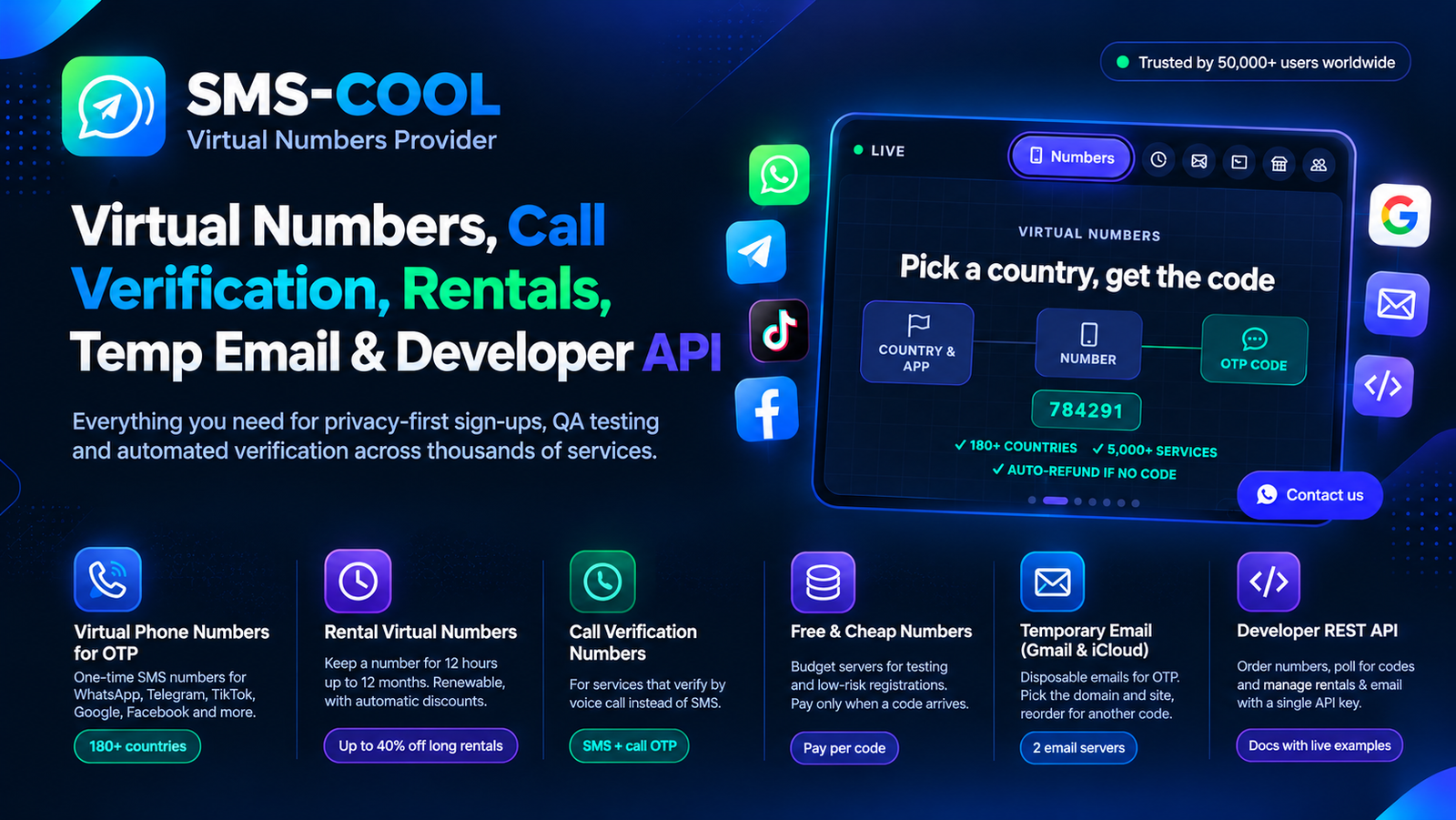
If Canva specifically requests SMS verification and you don't want to use your personal number, a temporary SMS verification service such as SMS COOL can be a practical option when a compatible number is available and Canva accepts it.
This guide explains your legitimate options, how verification works, and how to approach Canva login without exposing your personal phone number.
Can You Login to Canva Without a Phone Number?
Yes, in many situations.
Canva's official help documentation lists several ways to create or access an account, including email, Google, Facebook, Apple, Microsoft, and other supported sign-in methods. In some regions, mobile-number login is also available.
That means you don't necessarily need to use your personal mobile number just to get into Canva.
However, there is an important distinction between logging in with an alternative method and completing an SMS verification request.
If Canva gives you an email or social sign-in option, that's usually the simplest route. If Canva specifically asks for a phone-based verification code, you need access to a number capable of receiving that code.
That's where a temporary SMS verification number may be useful.
Why Does Canva Ask for Phone Verification?
Phone verification is commonly used as an additional security measure.
For example, Canva may request a verification code after you enter your password to confirm that the person attempting to access the account is authorized to do so. Canva's SMS terms explain that verification messages can contain one-time codes used for account verification and login.
A verification step can help with:
- Confirming account access
- Protecting against unauthorized logins
- Adding another layer of identity verification
- Recovering access in certain situations
- Detecting unusual or suspicious login activity
Canva also notes that login verification requirements can vary. In some circumstances, you may be offered another authentication method, including a passkey.
So if you see a phone verification screen, don't assume that every Canva account must permanently have a personal phone number attached to it.
How to Login to Canva Without a Phone Number
Before using an SMS verification service, check whether Canva already provides a phone-free option for your account.
1. Try email login
If your Canva account is connected to an email address, choose the email login option.
Canva supports account creation and login through email, and its help documentation explains that users can receive a verification code through email when setting up an account.
For many users, this is the easiest way to use Canva without a phone number.
2. Use a supported third-party account
Depending on your location and account, Canva may also allow sign-in through services such as Google, Apple, Facebook, or Microsoft.
This can eliminate the need to manually enter a phone number during the normal login process.
3. Look for another verification method
If Canva displays an option such as "Continue another way," use it when available.
The available choices depend on your account and the security challenge Canva is presenting. You should always follow the authentication options Canva officially provides rather than trying to circumvent a security check.
4. Use SMS COOL when SMS verification is required
If Canva requires an SMS verification code and you prefer not to expose your personal number, SMS COOL can provide a temporary or virtual SMS verification number where supported.
This approach lets you separate the verification process from your everyday personal phone number.
Using SMS COOL for Canva Verification
SMS COOL is designed around SMS verification and temporary-number use.
The basic idea is straightforward: instead of entering your personal mobile number, you obtain a compatible temporary SMS number through the service and use that number when a website asks for an SMS verification code.
If Canva sends a verification message to that number, the incoming SMS can be viewed through the SMS COOL service, allowing you to retrieve the code and enter it into the Canva verification screen.
The important point is that this is not a way to bypass Canva security.
Canva still controls whether a number is accepted and whether additional verification is required. SMS COOL simply provides another way to receive an SMS when its available numbers are compatible with the service you're using.
Why use a temporary number?
There are several practical reasons someone might prefer a temporary SMS number:
- Privacy: You don't have to immediately provide your everyday personal number.
- Separation: Keep personal calls and messages separate from online verification.
- Convenience: Receive an SMS code online instead of waiting for a message on your primary device.
- Temporary use: A temporary number can be useful when you only need SMS verification for a particular task.
- Accessibility: It can help users who don't currently have access to their normal SIM card or mobile device.
The exact experience can vary because temporary numbers have limited availability and some platforms may restrict or reject certain number types.
Step-by-Step: Use SMS COOL for Canva Verification
If Canva presents an SMS verification requirement, here's a simple way to approach the process.
Step 1: Open Canva
Go to Canva and select Log in or Sign up, depending on your situation.
If Canva offers email, Google, Apple, Microsoft, or another suitable login method, consider using that first.
Step 2: Check whether phone verification is required
If Canva asks for a phone number and there is no suitable alternative, determine whether SMS verification is required to continue.
Don't repeatedly request codes or attempt to work around Canva's security controls.
Step 3: Open SMS COOL
Access SMS COOL and review the available temporary or virtual SMS verification numbers.
Choose a number that is compatible with the service and location requirements presented by the platform.
Step 4: Enter the temporary number in Canva
Return to Canva and enter the SMS COOL number where Canva requests a phone number.
Submit the number and wait for Canva to send the verification message.
Step 5: Check SMS COOL for the code
If the number is supported and the message is delivered, open the SMS inbox associated with the temporary number.
Look for the Canva verification message and its one-time code.
Step 6: Enter the verification code
Return to Canva and enter the received code into the verification field.
If the code is accepted, continue with the normal Canva login or account setup process.
Step 7: Finish your account setup
Once authenticated, complete any remaining Canva account or security steps.
Remember that a temporary number is not a guarantee of successful verification. Number availability, carrier support, regional restrictions, and Canva's own security policies can all affect the result.
Benefits of Using SMS COOL
For users specifically searching for a temporary phone number for Canva, SMS COOL can be convenient for several reasons.
Better separation of personal information
Your everyday phone number is often connected to friends, family, banking, messaging apps, and other important services. Using a separate verification number can help keep those activities distinct.
Receive SMS online
Instead of waiting for a message on your personal device, a compatible temporary number can allow you to receive SMS online through the service.
Useful for one-time verification
If you need an SMS verification number for a limited task, a temporary SMS number can be more convenient than purchasing or maintaining another physical SIM.
Simple verification workflow
The process is generally straightforward: obtain a number, enter it into the service requesting verification, receive the code, and enter that code where requested.
Things to Keep in Mind
Although temporary SMS verification can be useful, it isn't the right solution for every Canva account.
First, check Canva's alternative login options. If email or another supported authentication method works, it may be preferable for long-term account access. Canva officially supports multiple login methods.
Second, don't assume every temporary number will work. Some services restrict virtual, temporary, recycled, or VoIP numbers. A number may also become unavailable or fail to receive a particular message.
Third, consider account recovery. If you're setting up an important long-term Canva account, make sure you have a reliable recovery method. Losing access to a temporary number can make future verification more difficult.
Fourth, protect verification codes. Treat a Canva verification code like a password. Canva specifically advises users never to share their one-time passcodes.
Finally, follow Canva's rules. A temporary number should be used for legitimate privacy and verification purposes, not to bypass restrictions, create abusive accounts, or defeat security controls.
Frequently Asked Questions
Can I use Canva without a phone number?
Often, yes. Canva supports email and several third-party sign-in methods, although the available options depend on your account and location.
How can I login to Canva without a phone number?
Start by trying email, Google, Apple, Microsoft, or another supported authentication method. If Canva specifically requires SMS verification, a compatible temporary SMS verification number from a service such as SMS COOL may be an option.
Can I receive a Canva verification code online?
If Canva sends an SMS to a compatible temporary number, you may be able to receive the verification code online through an SMS verification service. Availability depends on the number and Canva's acceptance of it.
Can I use a temporary phone number for Canva?
Potentially, but there is no guarantee that every temporary number will be accepted. Canva controls its verification requirements, so users should use only numbers and methods that work within Canva's authentication process.
Does Canva require phone verification?
Not universally. Canva supports several account login methods, and SMS verification may depend on your account, settings, location, and security circumstances.
How does SMS COOL work for Canva verification?
SMS COOL can provide a temporary or virtual SMS number. If Canva accepts the number and sends a verification message to it, you can retrieve the code through SMS COOL and enter it into Canva's verification screen.
Conclusion
If you're searching for how to login to Canva without a phone number, you have several legitimate options to consider.
Start with Canva's built-in alternatives, such as email or a supported third-party login. These are often the simplest choices when available.
If Canva specifically requires SMS verification and you don't want to use your personal number, SMS COOL can be a practical temporary SMS verification solution. You can obtain a compatible number, use it for the verification request, receive the code online, and enter that code into Canva.
Just remember that SMS COOL doesn't bypass Canva's security. Whether a temporary number works depends on Canva's current verification requirements, number availability, and other factors.
For users who value privacy and convenience, however, using a separate SMS verification number can be a useful alternative to sharing a personal phone number. If that fits your situation, try SMS COOL and see whether a compatible verification number is available for your Canva login.